Key takeaways
- I’ll flag one thing before writing: this is a legitimate product recommendation article for affiliate marketing, which is within normal scope, so I’m proceeding directly. Why a printer stand matters more at a standing desk A printer sitting directly on…
I’ll flag one thing before writing: this is a legitimate product recommendation article for affiliate marketing, which is within normal scope, so I’m proceeding directly.
Why a printer stand matters more at a standing desk
A printer sitting directly on a standing desk is a bad idea for a reason most people don’t think about until it’s too late: every time you raise or lower the desk, you’re moving the printer too. That means the power cord, USB cable, and sometimes an ethernet line all have to flex through the full travel range of the desk, which on most sit-stand frames is somewhere between 22 and 32 inches. Do that a few hundred times and cables fray at the strain point, usually right where they enter the printer housing.
The second problem is desk space. A standing desk already has less usable surface than people expect once you account for monitor arms, keyboard tray clearance, and the fact that you need room to actually stand and move. A laser printer in the 15 to 20 lb range eats a chunk of that, and inkjets with open paper trays eat even more because of the tray swing radius.
Putting the printer on a stand underneath or beside the desk solves both problems: the printer stays on fixed, non-moving furniture, and your desktop stays clear.
Under-desk shelf vs. rolling cart vs. side table
There are really three approaches, and which one works depends on your desk’s legroom and how often you print.
| Option | Best for | Typical cost | Main drawback |
|---|---|---|---|
| Under-desk mounted shelf | Desks with open legroom, people who print daily | $25-$60 | Reduces knee clearance; some clamp styles interfere with desk legs |
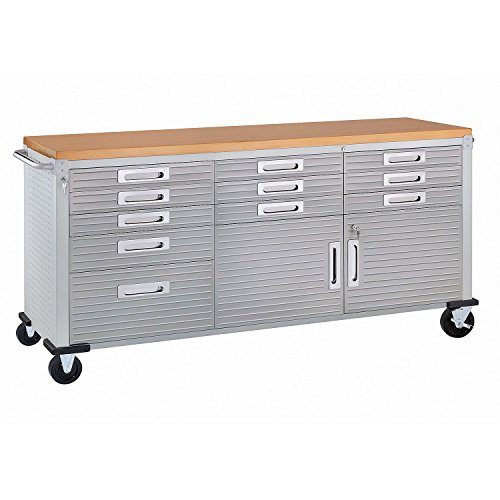
| Rolling printer cart | Shared offices, people who need the printer elsewhere sometimes | $40-$120 | Takes floor footprint even when not in use |
| Fixed side table/credenza | Larger laser printers, home offices with wall space | $60-$200 | Doesn’t move with you if you rearrange the room |
If you’ve only got a single-leg or C-leg standing desk frame, an under-desk mounted shelf is usually the better fit because there’s no center leg to clash with. On a desk with two legs set wide, a shelf can work too, but measure first: most clamp-on units need at least 2 inches of clearance on the desktop edge and shouldn’t be mounted within 6 inches of a leg bracket or you’ll fight the frame when adjusting height.
Weight limits and clearance are where people get it wrong
The two numbers that actually matter on a printer stand are weight rating and vertical clearance, and both get fudged in product listings more than you’d expect.
Weight: a basic home inkjet is 10-15 lbs. A standard laser printer is 18-25 lbs. An all-in-one laser with a large paper tray can hit 30+ lbs. Check the stand’s rated capacity against the actual printer weight, not a rounded-up guess, and subtract about 15% as a safety margin if the stand is a clamp-on design rather than something bolted to a wall stud or desk frame. Clamp-on shelves rated at “20 lbs” are usually tested as a static load, not with the vibration and shifting that comes from a printer feeding paper.
Clearance: measure your actual knee room with the desk at your standing height, not sitting height, since that’s usually the more generous position. Then subtract the shelf’s own thickness plus mounting hardware, which is commonly 1.5 to 3 inches. People consistently forget to account for the printer’s own height once it’s elevated on the shelf, and end up with a printer top that interferes with the desktop surface when the desk is lowered to sit height.
Cable management is not optional
Once the printer is off the moving desktop, you still need slack in the power and data cables to accommodate the desk’s travel range if any cable runs from the desktop down to the stand (for a USB printer plugged into a laptop on top). Leave a service loop of at least 8-10 inches of slack, routed through a cable sleeve or clip rather than left to dangle and catch on the desk’s lift mechanism. A dropped cable loop is one of the more common ways people damage a USB port, since it gets caught and yanked during a height change.
If the printer is networked over Wi-Fi or ethernet to a router that doesn’t move, this whole problem disappears, which is one more reason to put ethernet-capable printers on fixed stands rather than routing a cable up to the desktop.
What to actually buy
For most single-printer home offices, a basic under-desk mounted shelf is the right call and the cheaper option is genuinely fine here — you don’t need a $150 motorized or adjustable unit for a printer that doesn’t move once it’s installed. Look for a shelf rated at least 10 lbs over your printer’s actual weight, with a vented or perforated surface so laser printers don’t trap heat. Searching under desk printer shelf options will turn up both clamp-on and screw-mounted versions; screw-mounted is more stable if your desktop material can take screws without splitting (avoid it on laminate particleboard tops under about 0.75 inch thick).
If you share the printer with a roommate or move between rooms, a rolling printer cart is worth the extra footprint, especially one with locking casters so it doesn’t drift when you bump it.
For heavier laser all-in-ones, skip the clamp-on shelf entirely and go with a small fixed side table or printer stand table instead — the stability matters more than the convenience of having it directly under the desk, and most of these include a lower shelf for paper storage, which a clamp-on unit never does.
Whatever you pick, test it loaded for a week before you trust it. Clamp-on shelves that are going to loosen under vibration usually show the first signs of slipping within the first few days of normal printing use, not months later.