Key takeaways
- Map webcam framing across ordinary monitor-arm positions, check actual app previews and record cable movement before joining calls.
What's inside
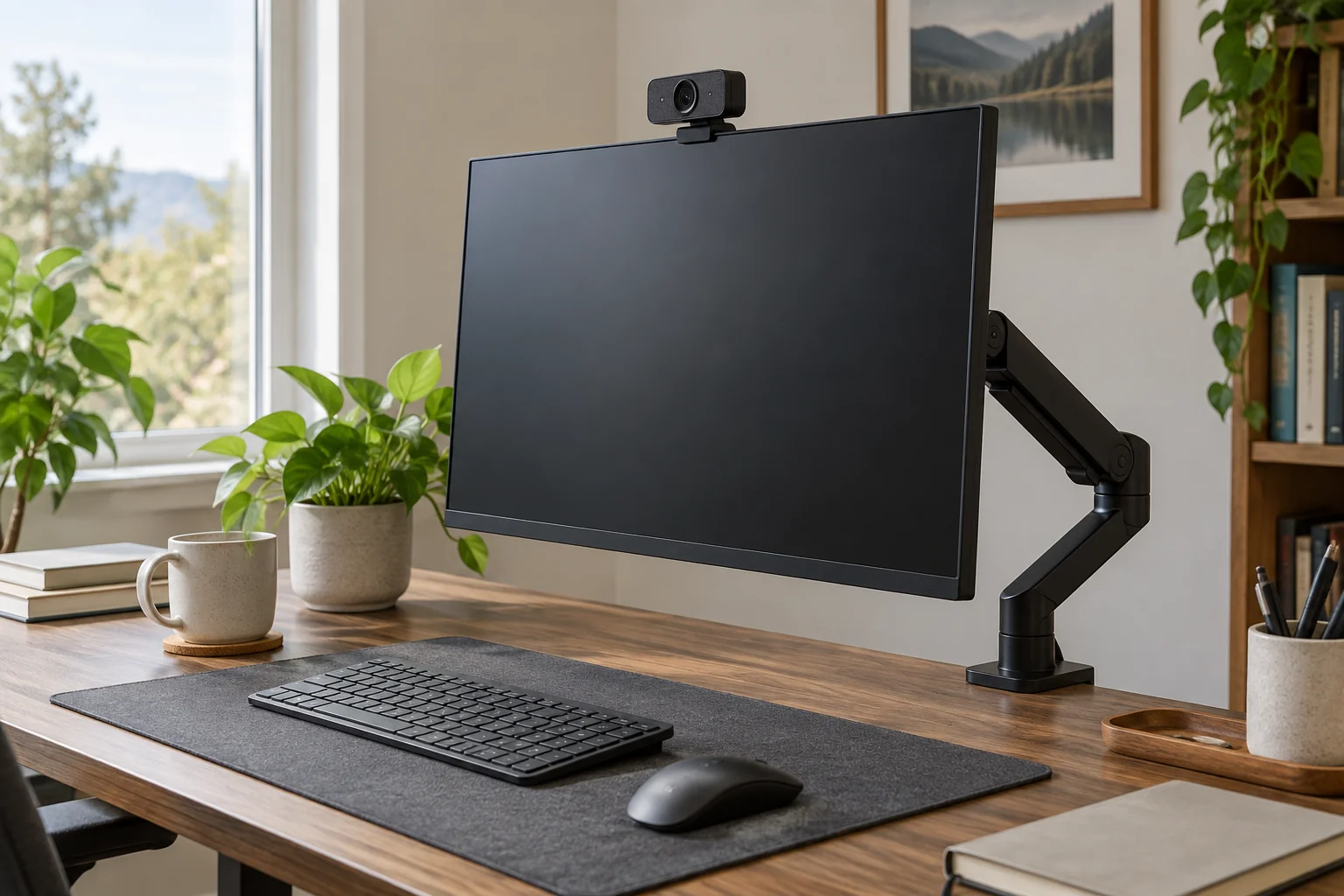
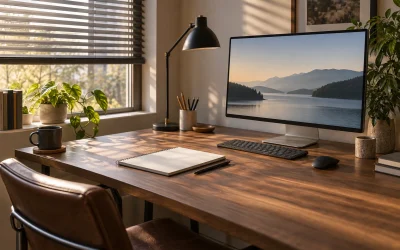
A webcam mounted on a monitor moves when the screen moves. A framing check made with the monitor centered may no longer apply after the arm swings toward a second task, the screen tilts or the desk rises. Plan a small set of repeatable working positions and preview the camera in each before joining a call.
The aim is a useful picture and a clear cable route without sacrificing comfortable screen placement. This is a setup worksheet, not a webcam quality test or a promise that a background filter hides everything in the room.
List the positions you actually use
Start with two or three ordinary arrangements: seated typing, a standing call and a screen swung aside for paperwork, for example. Describe each with a simple reference such as centered over the keyboard or beside the drawing pad. Do not invent additional arm positions merely to make the checklist look complete.
Follow the arm, monitor and camera manufacturers’ mounting and movement instructions. Include the camera and other attached accessories when checking the applicable load specification. A camera clip that sits on a screen is not proof that every screen edge, curved back or arm configuration accepts it.
Keep camera position and field of view separate
Moving the monitor changes where the camera is and which direction it faces. Changing a field-of-view setting changes the area shown from its current position. Those controls solve different problems. A tighter view cannot necessarily correct a camera pointing away from the speaker.
For one documented example, Logitech’s BRIO 4K specifications list selectable diagonal fields of view of 65, 78 and 90 degrees. These values apply to that product, not every BRIO model or every webcam. A diagonal angle is also not a direct measurement of the horizontal room width visible at your desk.
Record the setting actually available in your camera software. Then inspect the preview in the calling application you intend to use, because cropping, framing and other app settings may alter the final picture. Avoid assuming that a preview in one program establishes the appearance in another.
Build a position-to-picture worksheet
| Working position | Record in the actual app preview | Physical check |
|---|---|---|
| Seated, centered screen | Face position, visible background and selected view setting | Camera seated as instructed; cable not pulled tight |
| Standing position, if used | Headroom and background after normal desk movement | Full permitted cable route remains unobstructed |
| Screen moved sideways | Whether the speaker remains framed; new background visible | Arm clears nearby objects without camera contact |
| Return to normal work | Settings or camera angle requiring restoration | Cable and mount return without snagging |
Use a private preview rather than surprising another caller with a room survey. Keep confidential paperwork and other people out of any saved test image. You can record a written observation instead of retaining screenshots that contain personal details.
Change one thing and check the result
Choose a normal screen position first. Adjust the camera using its permitted controls, inspect the preview and record the result. Then change only one variable, such as a supported view setting or a small allowed camera tilt. This makes it easier to understand which adjustment improved the frame.
Do not lower or angle the monitor into an uncomfortable working position simply to avoid adjusting the camera. If an approved separate camera mount would better separate screen movement from framing, compare that option with the instructions for the camera and supporting furniture. This guide does not authorize attaching improvised brackets to an arm.
Illustrative example: the side position reveals a doorway
Imagine a home worker whose centered monitor gives an acceptable seated picture. When the arm swings right to clear a paper drawing, the attached camera turns toward an open doorway. Returning the camera’s software to the same view setting does not restore its original direction.
The worksheet records the doorway as newly visible and assigns a simple routine: return the monitor to the documented call position, check the preview, then join. If calls must happen in the side position, that position needs its own approved camera adjustment and background check. Neither choice requires pretending the first position works everywhere.
This fictional example concerns framing, not a measured optical result. A household may use a different arrangement, and a software crop or blur should be checked rather than treated as a complete privacy guarantee.
Check cables through permitted movement
With the equipment operated according to its instructions, observe the accessible cable path as the desk and arm move through the positions you use. Stop if a connector is pulled, a loop catches or a cable crosses a pinch area. Resolve the route using the equipment’s cable-management instructions before relying on that position.
Do not tie a cable tightly enough to prevent required movement or reach into moving mechanisms. Cable length alone is not the entire check: connector placement and the route around joints matter as well. A disconnected camera after repositioning is a reason to inspect the documented setup, not force a strained plug back into place.
Make the pre-call check short
Keep three prompts near your routine: correct working position, correct camera selected, preview checked. Revisit the worksheet after changing the camera, monitor, arm, calling app or furniture layout. A repeatable position and a brief real preview are more useful than a supposedly perfect angle that nobody can restore after ordinary desk movement.