The best laptops for video editing under a realistic budget are a 16GB-to-32GB machine with a modern six-core-or-better processor, a dedicated GPU for 4K work, a 1TB SSD, and a color-accurate display—rather than the laptop with the highest advertised processor speed.
Quick picks by editing budget
| Budget | Best fit | Minimum specification to target | Typical market range |
|---|---|---|---|
| Under $700 | 1080p editing and occasional short 4K projects | 6-core CPU, 16GB RAM, 512GB SSD, integrated graphics or entry-level GPU | Usually $500–$700 |
| $700–$1,100 | Regular 1080p and practical 4K editing | 8-core CPU, 16GB RAM, 1TB SSD, RTX 4050-class GPU or Apple silicon | Usually $700–$1,100 |
| $1,100–$1,700 | Frequent 4K, effects, multicamera timelines | 32GB RAM, 1TB SSD, RTX 4060-class GPU or better, high-quality display | Usually $1,100–$1,700 |
| Over $1,700 | Professional 4K, RAW, 6K, and demanding color work | 32GB–64GB RAM, 1TB–2TB SSD, strong discrete GPU, wide-gamut display | Usually $1,700–$3,000+ |
What matters most in a video-editing laptop
CPU: timeline responsiveness and export speed
The processor handles decoding, timeline calculations, audio processing, background tasks, and much of the export workload. For budget shopping, prioritize sustained multicore performance over a short-lived turbo-speed figure. A current Intel Core Ultra 7, AMD Ryzen 7, or Apple M-series processor is a sensible starting point. Six modern cores can handle basic 1080p projects, while eight or more strong cores are preferable for 4K, multicamera editing, and effects-heavy timelines.
Apple silicon laptops are particularly efficient for editing because media engines accelerate common H.264, HEVC, and ProRes tasks. Windows laptops can offer more raw graphics performance and easier hardware upgrades, but their performance depends heavily on cooling and power settings.
GPU: the difference-maker for effects and 4K playback
A dedicated GPU is valuable for color grading, transitions, motion graphics, noise reduction, and GPU-accelerated exports in applications such as DaVinci Resolve and Adobe Premiere Pro. An NVIDIA GeForce RTX 4050 is a practical minimum for regular 4K work. An RTX 4060 or RTX 4070 provides more headroom for high-resolution effects and longer timelines.
Integrated graphics can be enough for 1080p editing and simple 4K cuts, particularly on recent Apple silicon or AMD processors. They become limiting when several correction layers, artificial-intelligence effects, or high-resolution footage are stacked together. Check the GPU’s video-memory capacity as well as its model: 8GB is more comfortable than 6GB for demanding effects.
RAM and SSD capacity
Choose 16GB of RAM only when the budget is tight and the projects are mostly 1080p. For 4K editing, 32GB is the more dependable choice, especially if you keep a browser, music application, or graphics software open at the same time. Some thin laptops have soldered memory, so buying the larger memory configuration initially may be important.
A 512GB SSD works for a small project library, but the operating system, editing application, cache files, and source media can consume that space quickly. A 1TB internal SSD is a better baseline. Professional users may prefer 2TB or a fast external SSD. Keep at least 15% of an SSD free because nearly full drives can reduce working convenience and sometimes affect sustained write performance.
Best laptop types for different editing situations
Best under $700: a productivity laptop with 16GB RAM
For school assignments, social videos, and straightforward 1080p projects, look for a 15- or 16-inch laptop with a modern Ryzen 5, Core Ultra 5, or equivalent processor, 16GB RAM, and a 512GB SSD. Models in this category may include Acer Aspire, Lenovo IdeaPad, or ASUS Vivobook configurations, but specifications vary substantially between model numbers.
Expect to use proxy media for demanding 4K footage. Integrated graphics will usually manage cuts and basic titles, but this class is not ideal for complex DaVinci Resolve effects or lengthy exports. A usable IPS display is preferable to a dim panel with poor viewing angles.
Best around $900–$1,200: a balanced RTX editing laptop
This is the most attractive range for many creators. A laptop with an AMD Ryzen 7 or Intel Core Ultra 7, 16GB or 32GB RAM, a 1TB SSD, and an RTX 4050 or RTX 4060 can provide smooth 1080p work and practical 4K editing. The Lenovo LOQ, Acer Nitro V, ASUS TUF Gaming, and comparable models often appear in this specification class.
Gaming laptops can outperform thin creator laptops at the same price because their cooling systems sustain higher power limits. The trade-off is weight, fan noise, shorter battery life, and less consistent screen quality. If the display covers close to 100% of the sRGB color space and has reasonable factory accuracy, it is suitable for general web video. For professional color delivery, plan to connect a calibrated monitor.
Best around $1,300–$1,700: a creator laptop with 32GB RAM
For frequent 4K work, choose 32GB RAM, an RTX 4060-class GPU or stronger, a 1TB SSD, and a screen with at least full sRGB coverage. The ASUS ProArt P16, Lenovo Legion Slim configurations, and selected Dell or HP creator models can fit this role when equipped with the right CPU, GPU, and display.
OLED panels can look excellent, with deep blacks and wide color coverage, but confirm the color mode before editing. Some screens are tuned for vivid colors rather than accurate output. OLED also needs sensible brightness management when displaying static interface elements for long periods. A matte IPS screen may be the calmer choice for a bright room or a long editing session.
Best premium choice: high-memory creator or workstation laptop
Editors handling RAW, 6K, multicamera, or substantial motion graphics should consider 32GB or 64GB RAM, a 1TB or 2TB SSD, and a GPU with at least 8GB of video memory. Apple MacBook Pro models with Pro or Max-series chips are strong choices for efficient ProRes workflows and quiet operation. Windows alternatives with RTX 4070-class graphics or higher offer greater flexibility for GPU-intensive applications.
Premium does not automatically mean cooler. A thin metal chassis may become uncomfortable during long exports, while a thicker workstation can maintain performance more consistently. Look for multiple heat pipes, large exhaust vents, and independent CPU and GPU cooling rather than relying only on the laptop’s marketing label.
Display and thermal behavior: details that specifications miss
For editing, a 16:10 16-inch display gives more vertical room for a timeline and panels than a conventional 16:9 screen. Full sRGB coverage is a reasonable minimum for online video. Editors delivering HDR or wide-gamut content should seek a display that specifically supports a wide color gamut and a suitable brightness level; otherwise, connect an external reference display.
Thermal behavior affects rendering suitability. A laptop that reaches its advertised speed for two minutes but then reduces power may export more slowly than a slightly less powerful model with better cooling. During long renders, expect gaming-style laptops to become audible. Place the computer on a hard, level surface, keep rear and side vents clear, and avoid using it on fabric furniture.
Fit the laptop into a practical editing workspace
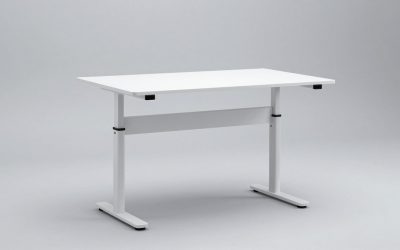
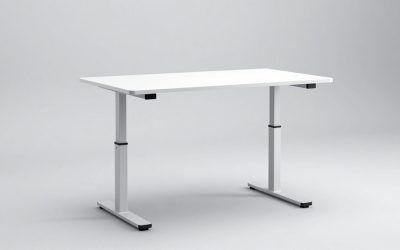
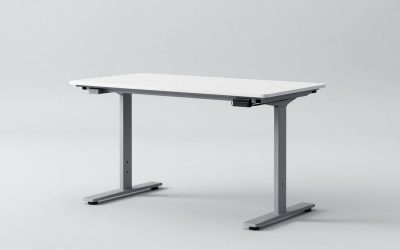
A 16-inch laptop needs roughly 36 inches of desk width for the computer, mouse, and comfortable hand movement. Add a second display and the working width can approach 48–60 inches. A desk around 28–30 inches high generally suits seated editing, but measure your chair and leg clearance rather than assuming every desk is comfortable.
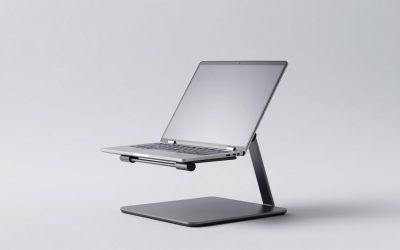
For a 10-by-12-foot room, a 48-inch desk can leave useful walking space while accommodating a laptop and one monitor. A 60-inch desk is more comfortable for dual displays but may crowd a narrow room. Keep at least 30 inches of clear passage in front of the desk. A laptop stand can raise the display, but use an external keyboard and mouse so your shoulders do not remain lifted during long sessions.
| Workspace item | Useful measurement | Why it matters |
|---|---|---|
| Desk height | About 28–30 inches | Allows a typical seated posture; adjust for chair height |
| Desk depth | At least 24 inches | Provides space for the laptop and viewing distance |
| Clearance in front | About 30 inches | Leaves room to pull out a chair and move safely |
| Monitor viewing distance | Roughly 20–30 inches | Reduces neck movement and makes the timeline easier to read |
How to choose without overspending
- Choose 16GB RAM for basic work and 32GB for dependable 4K editing.
- Prioritize a 1TB SSD if your source files stay on the internal drive.
- Select an RTX 4050 or better for regular GPU-accelerated effects.
- Verify the actual display coverage and brightness, not just the word “professional.”
- Compare sustained cooling, charger size, weight, and fan noise before choosing a thin design.
- Budget for an external SSD, which commonly costs $70–$200 depending on capacity and speed.
Final recommendation
For most buyers searching for the best laptops for video editing under a controlled budget, the strongest all-round target is a 16-inch laptop with a modern Ryzen 7 or Core Ultra 7 processor, 32GB RAM, a 1TB SSD, an RTX 4050 or RTX 4060 GPU, and a display covering full sRGB. Choose Apple silicon instead when quiet operation, battery life, and ProRes performance matter more than upgradeability. Choose a thicker Windows laptop when sustained rendering speed and GPU effects are the priority.